 TimelineFlow
A good ending, beginning or middle for your music. No Fairlight needed.
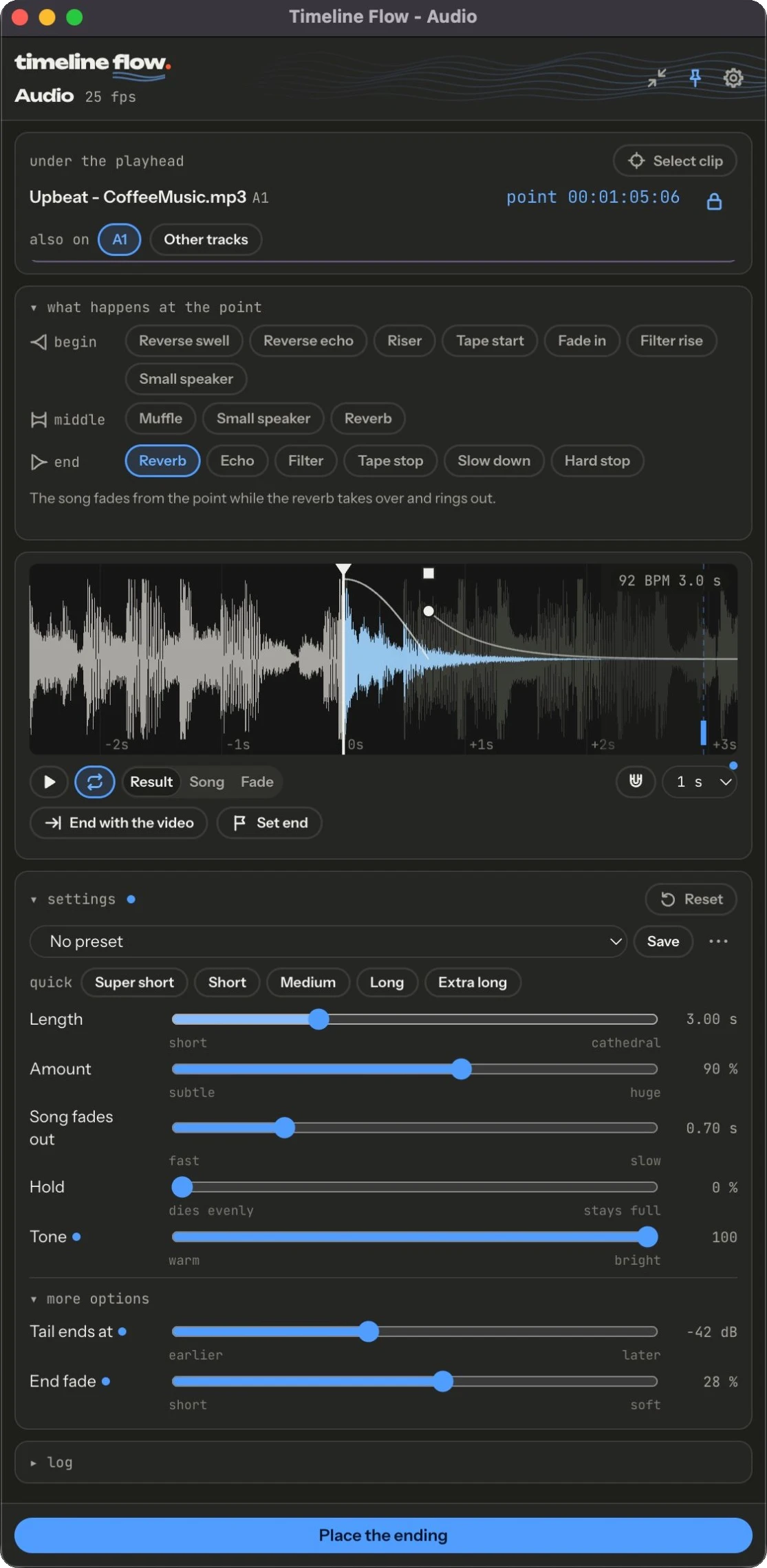
Timeline Flow - Audio is a panel for DaVinci Resolve Studio. Put the playhead on a music clip, choose an effect and hear the result right away. Press Place and the new audio sits on your timeline, lined up sample for sample. No separate steps in Fairlight.
How it works
Open the panel
Workspace › Workflow Integrations › Timeline Flow - Audio. Put the playhead on a music clip.
Choose and listen
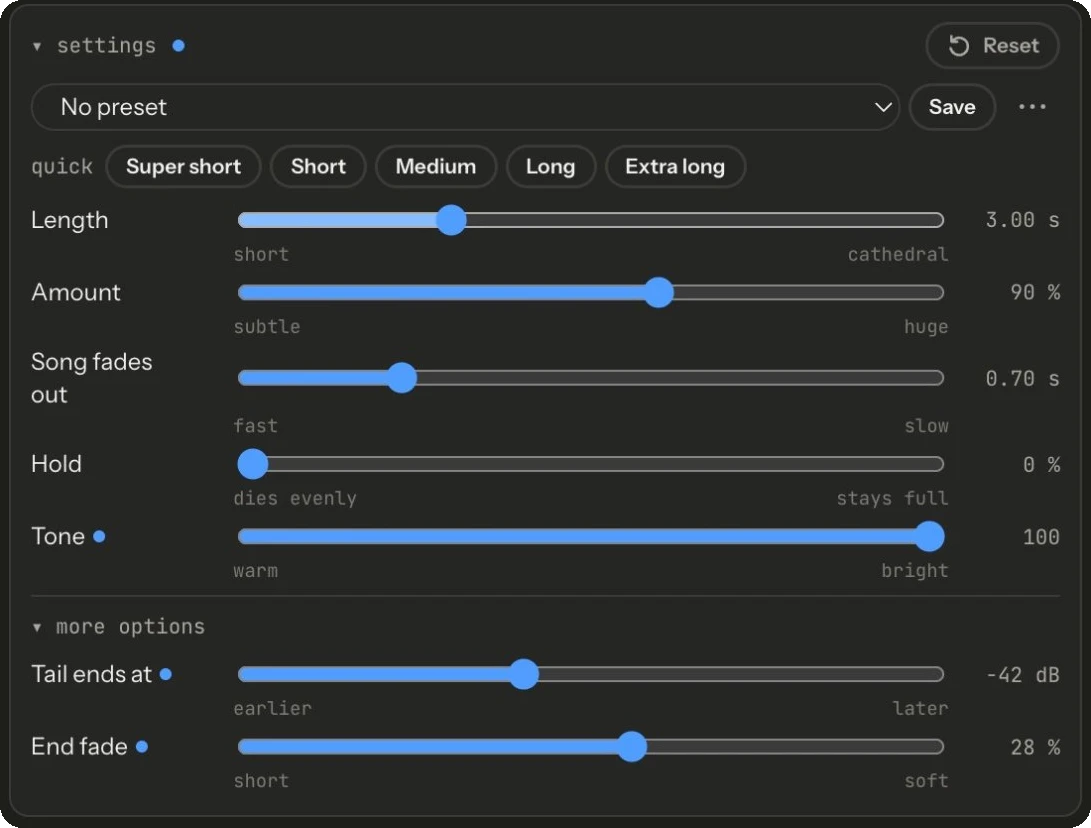
Pick an ending, beginning or middle. It plays right away. Adjust with the sliders or drag the grips in the waveform.
Place
Press Place twice, so nothing happens by accident. You can still change it or undo it later.
16 effects
Endings, beginnings and middles.
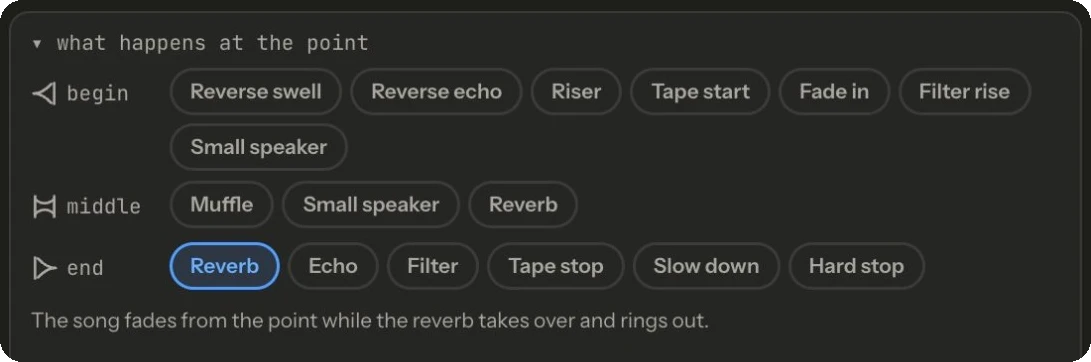
Endings
The song stops right at the playhead.
Reverb
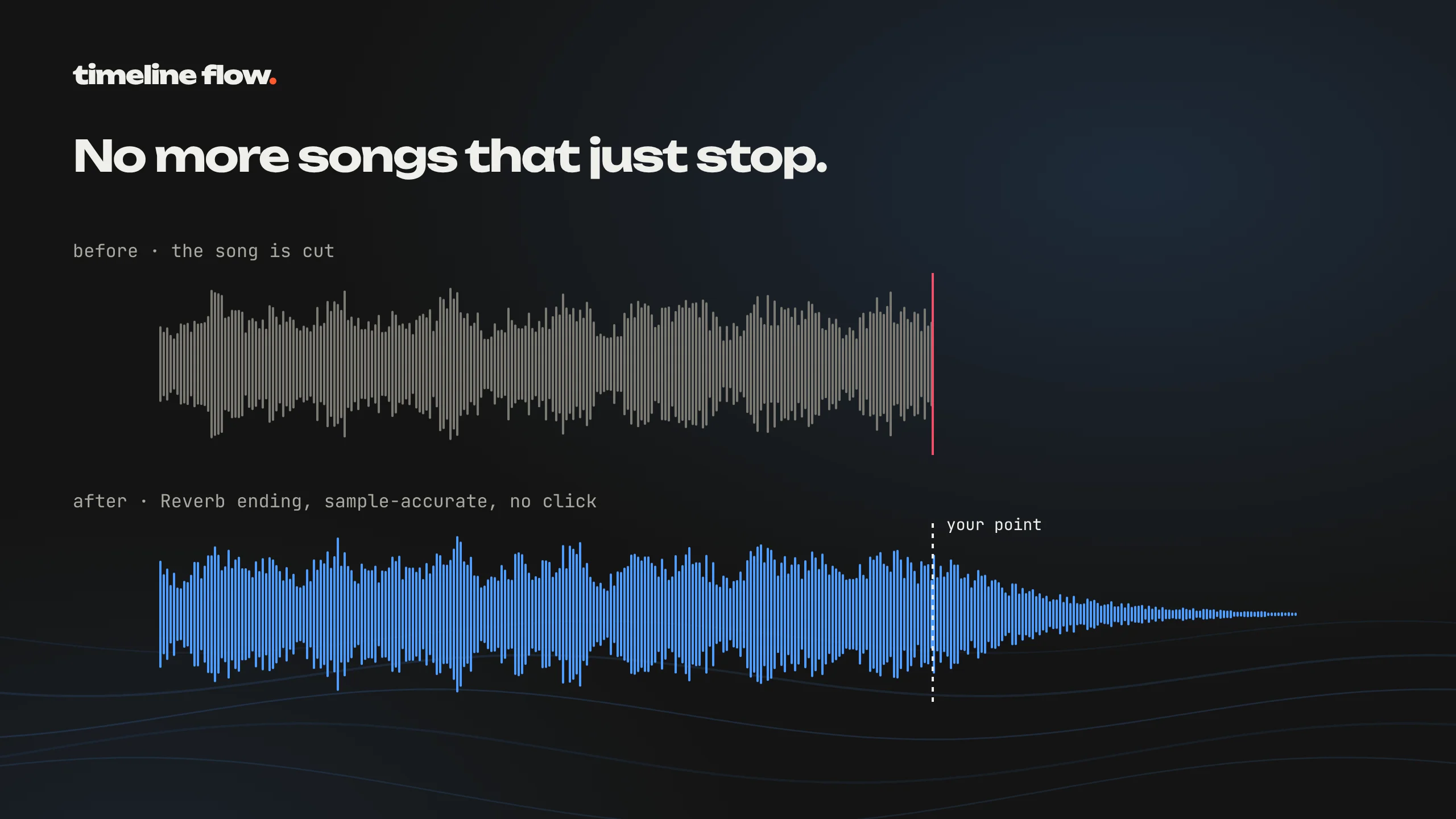
The song fades out while a reverb takes over and rings out.
Echo
The last bit repeats and dies away, in time with the beat when the tool finds one.
Filter
The song gets duller and duller until it is gone.
Tape stop
The song slows down and drops in pitch until it stops.
Slow down
The song plays on, slower and slower, and dies away in reverb. Tape (pitch drops) or Stretch (same pitch, only the tempo slows), with optional echo and a darker closing filter.
Hard stop
The song stops on the point. Only the reverb of what came before rings on.
Beginnings
The song is fully in right at the playhead.
Reverse swell
A reversed reverb swells up into the point.
Reverse echo
Reversed echoes of the first hit grow into the point.
Riser
A rising whoosh builds up, then the song kicks in.
Tape start
The song spins up from a standstill to full speed.
Fade in
A natural fade in, optionally with a little reverb.
Filter rise
Starts dull and muffled and opens up, like a DJ filter.
Small speaker
Starts thin, like a phone or radio, and opens up to full.
Middles
An effect on a part in the middle. The song is untouched before and after.
Muffle
The sound goes dull, as if behind a wall, and comes back clear.
Small speaker
The sound goes thin and comes back full.
Reverb
A wash of reverb that dries up again at the end point.
Features
Listen before you place
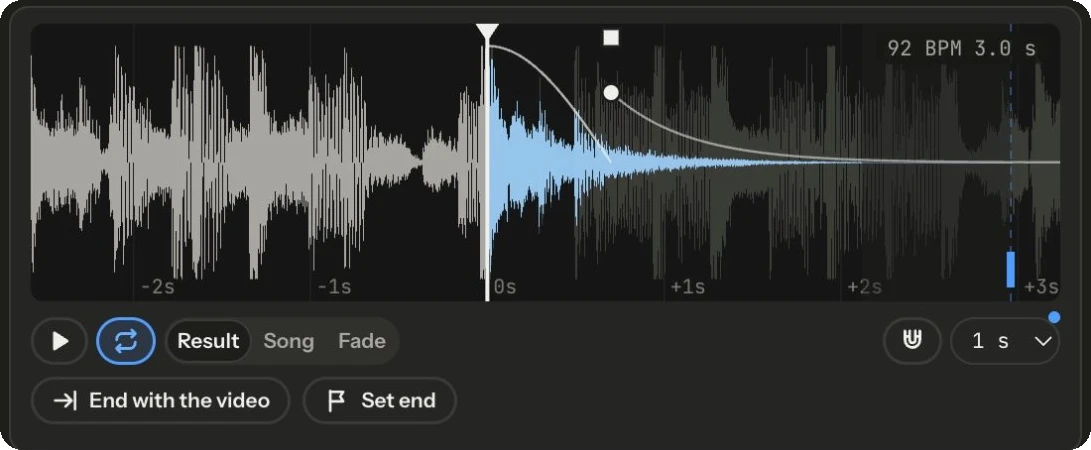
Playback in the panel with pre-roll and loop, plus A/B: the result, the original song, or a plain fade.
Waveform with grips
Drag the point, the length and the amount right in the waveform.
Ends exactly where you want
Set end makes the tail die away exactly on the playhead. End with the video does the same with the end of the video or the Out point. Snap to beat makes the length jump per beat (tempo is detected).
Tails never cut off
The tail stops where you can no longer hear it, with a last small fade.
Other tracks
Put the same effect on several tracks at once. Replace and Undo work on the whole group.
Change it later
Put the playhead on a placed piece and the panel shows its settings. Change them and press Replace, or Undo to make the original clip whole again.
Sound quality
Its own engine
All sound is made by the tool's own engine: reverb, echo, filters, tape, time stretch and a limiter. No third-party plug-ins. What you hear in the panel is exactly what gets placed.
24-bit stereo WAV
Output is a 24-bit stereo WAV at the sample rate of the song.
You never hear the cut
The new audio connects to the song sample for sample.
Works with your files
WAV, BWF, RF64, AIFF, PCM audio in MOV/MP4, MP3, FLAC, AAC/M4A, Ogg Vorbis and Opus. Only the part around the playhead is read, so even very long files load fast. Music at a different frame rate than the timeline works too.
Part of Timeline Flow, Resolve tools by Max Film.
Buy
Installation
- 01Needs DaVinci Resolve Studio (Workflow Integration plugin). Built and tested with Resolve Studio 21.1.2.
- 02macOS: installer .pkg, asks for your password once. Windows 64-bit: Setup.exe. It is not code-signed yet, so Windows shows "More info → Run anyway".
- 03Restart Resolve after installing.
- 04Open the panel: Workspace › Workflow Integrations › Timeline Flow - Audio.